Holder
Installing the wallet
Install the Cyfher wallet in your browser as a Progressive Web App.
The Cyfher wallet stores your verifiable credentials privately on your device. Credentials never leave the wallet unless you explicitly present them to a verifier — and even then, you choose which fields to share.
Where to get it
Browser (PWA)
The Cyfher wallet is a Progressive Web App — this is the way to use it today. Visit wallet.cyfher.io. It works as a regular web app, but for the best experience add it to your home screen:
- Chrome / Brave / Edge — click the install icon in the address bar (a monitor with a down-arrow), or use the three-dot menu → Install Cyfher Wallet.
- Safari (iOS or macOS) — Share menu → Add to Home Screen.
- Firefox — supports PWAs on Android; on desktop, bookmark it and pin to your taskbar.
Installed PWAs run in their own window, store credentials offline, and handle openid-credential-offer:// links system-wide on platforms that support it.
iOS
A native iOS wallet is built (SwiftUI + UniFFI bindings to the same Rust credential engine the PWA uses) but not yet distributed — it is not on the App Store or TestFlight, so there is currently no way to install it. Use the PWA from Safari — Share menu → Add to Home Screen — for a home-screen app on iPhone and iPad.
Android
Native Android wallet is also on the roadmap (Jetpack Compose + UniFFI bindings to the same Rust credential engine). In the meantime, the PWA installs on Android and supports the full set of credential operations.
Opening it for the first time
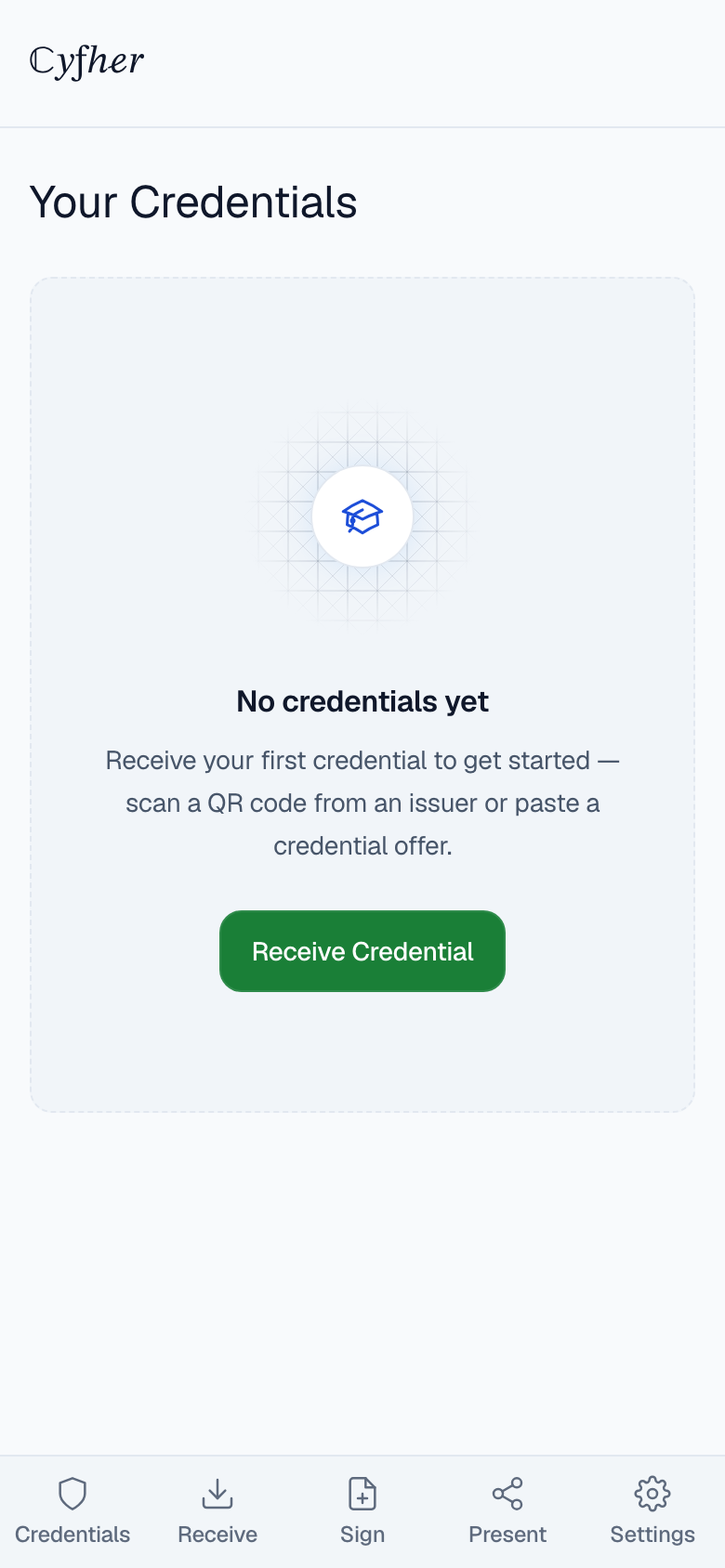
There’s nothing to set up. The wallet has no Cyfher account, no email, and no password. It opens straight to an empty credential list, ready to receive your first credential.
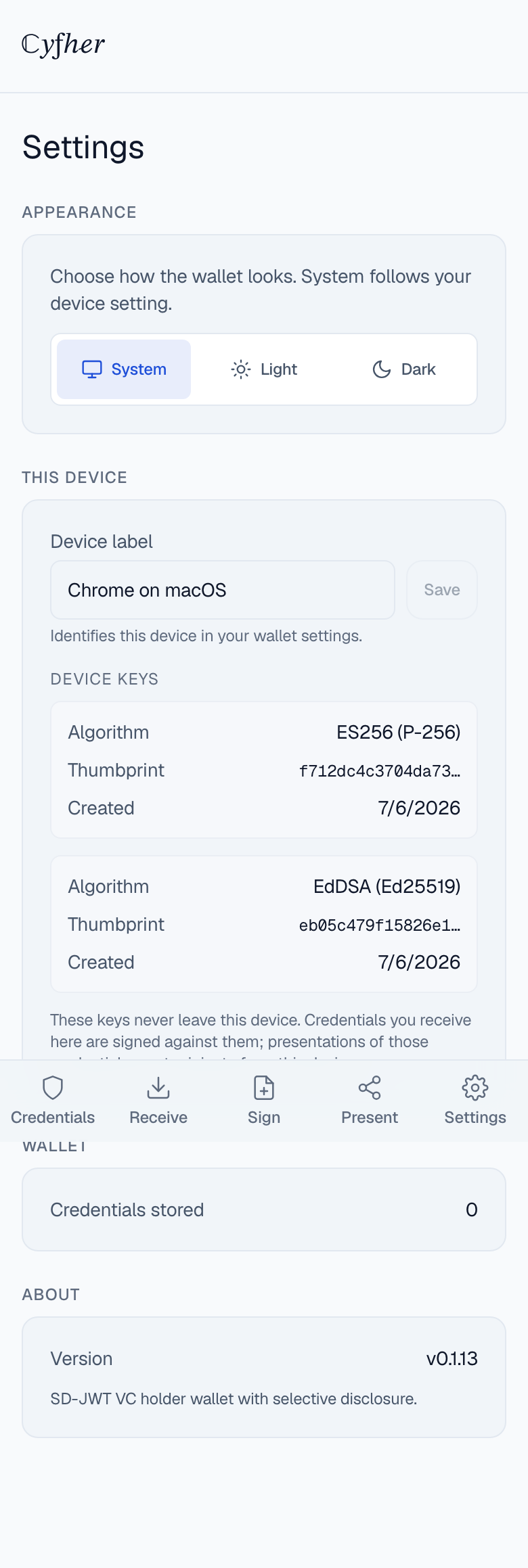
Behind the scenes — the first time it needs one — the wallet generates a signing key pair in your browser. The private key is non-extractable and stays in this browser’s key store; it’s used to bind the credentials you receive to this device. You can review its details, and set an optional device label, under Settings → This Device.
Backup and recovery
Your credentials and the key that binds them live on this device only. There is no backup, no cloud sync, and no seed phrase — this is by design. As the wallet itself puts it: these keys never leave this device.
If you lose or reset the device, you lose the credentials. There is nothing to restore. Recovery is by re-issuance: ask the issuer to send the credential again (your institution can re-issue from their portal) and claim it fresh on your new device.
Permissions the wallet needs
- Camera — for scanning QR codes (credential offers, presentation requests).
- No location, no contacts, no notifications.
Next
Once installed and set up, head to Receiving a credential.