Holder
Receiving a credential
Accept a credential offer by scanning a QR code or following an email link.
Issuers send credentials as offers — a one-time link or QR code that your wallet redeems for the actual signed credential. The credential never enters your device until you accept it; the offer is just a pointer.
Two ways to receive
Email link
When an issuer sends you a credential, you get an email with a “Claim your credential” button. Tapping it opens a Cyfher claim page in your browser — it does not open the wallet directly.
To protect the credential, the claim page first verifies it’s you: it emails a 6-digit code to your address, and you enter it to continue. Once the code checks out, you reach a page that offers two ways to receive the credential:
- Open in Cyfher Wallet — a deep link that hands the offer to the wallet. If you don’t have the wallet yet, the same page links you to install the PWA.
- Copy the offer URI — a plain-text
openid-credential-offer://link you can paste into any compatible wallet.
The pre-authorized offer on that page is short-lived — it expires within a few minutes — so finish the hand-off promptly.
QR code
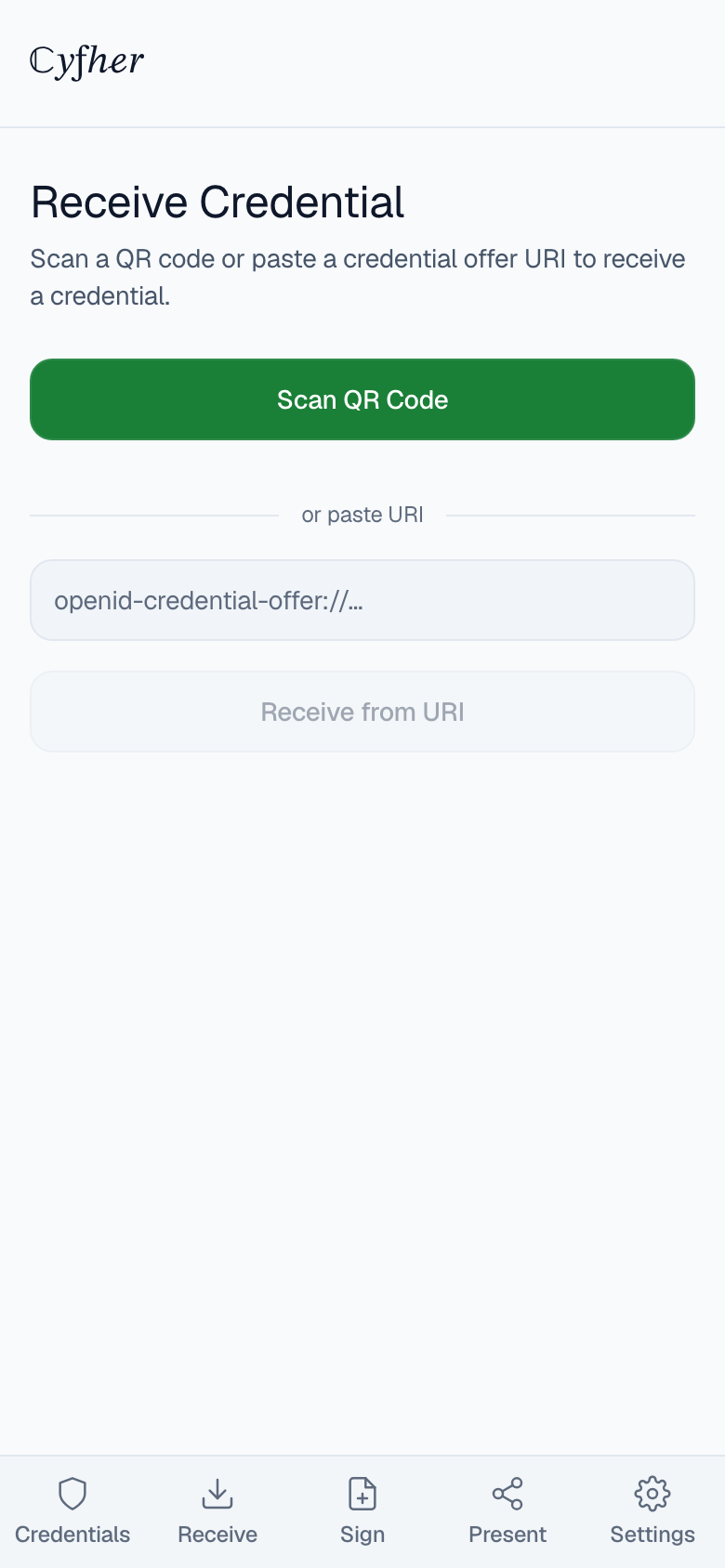
If the issuer hands you a QR code (e.g. at a graduation ceremony, in an office, or on a screen at an event), open the wallet’s Receive screen, tap Scan QR Code, and point your camera at the QR. The wallet decodes it and starts the acceptance flow.
You can also scan a QR that someone else shows you on a screen — it’s the same flow.
What happens during acceptance
Once the wallet has the offer, it talks directly to the issuer to fetch the credential. You’ll see a review screen showing:
- Who issued it — the issuer’s verified display name and domain.
- What it is — the credential type and any branding (logo, colors) the issuer set.
- What’s inside — every claim the credential will carry (name, qualification, dates, etc.). Nothing is hidden.
- How long it’s valid — issue date, expiry date if any, and the issuer’s revocation status URL.
Tap Accept to store the credential, or Decline to walk away. Declining does not notify the issuer; the offer just goes unredeemed and expires on its own schedule.
If the issuer asks you to verify your identity first
Most credential offers are pre-authorized: the issuer already knows who you are (they sent the email to you) and the credential is bound to you in advance. Sometimes — especially for high-assurance credentials — the issuer wants you to prove identity at claim time. In that case, before showing you the credential preview, the wallet redirects you to the issuer’s login. Once you’re authenticated, you come back to the wallet and continue normally.
If you don’t have an account with the issuer yet, the login page will offer signup.
After accepting
The credential appears in your wallet’s main list. Tap it to see:
- All the claims in full.
- A PDF certificate (if the issuer provided one) — useful for emails, printing, or quick-share scenarios where a verifiable credential isn’t supported.
- A status indicator — green if the issuer still considers the credential valid, amber if suspended, red if revoked. Status is refreshed automatically; you can force-refresh from the credential detail page.
The credential is now ready to present. See the wallet’s Present flow for sharing it with a verifier.
Privacy notes
- The wallet never sends your credentials anywhere except when you initiate a presentation.
- Cyfher’s servers cannot see what credentials you hold; the wallet stores them locally on your device.
- When you present a credential, the wallet shows exactly which fields will be shared and lets you decline if it asks for more than you’re willing to give.
Troubleshooting
- “This offer has expired” — offers have a time limit set by the issuer. Contact them for a new one.
- “This offer has already been claimed” — each offer is one-shot. If you need the credential on another device, ask the issuer to re-issue it.
- “Couldn’t reach the issuer” — check your internet connection and try again. Offers are one-shot: there’s no pending queue and no automatic retry. If it still fails, start over — re-open the claim link (you’ll verify with a fresh code) or rescan the QR.